ZeeMee API Integration
Overview#
ZeeMee supports sending data via API, as opposed to flat file SFTP. An API integration can quickly be achieved using the Import and Export Templates and Segment created for the SFTP integration.
Notify your ZeeMee Partner Success Director if you wish to use an API integration.
Items for ZeeMee#
Send these items to ZeeMee. Descriptions of each item are below.
- API Key
- Feature Token
- Import Template GUID
- Export Template GUID
- Export Segment GUID(s)
Creating API Credentials for ZeeMee#
The ZeeMee team will require a key to access the API. Follow the steps in this article to generate a unique API key for ZeeMee to use. Be sure to include the Feature token in your communication to them.
PLEASE SEND API CREDENTIALS THROUGH SECURE EMAIL.
Template GUIDs and Segment GUID#
ZeeMee will need the Import and Export template GUIDs you would like to use, and the Segment GUID of the Segment you wish to send to ZeeMee. The GUIDs are the unique identifiers for each item in Element451. Find them at the end of the URL when the item is opened in Element415 (example).
Using the ZeeMee Community Data Import & ZeeMee Community Data Export Templates
The ZeeMee Import and Export templates were built for Flat File integrations with ZeeMee, but can also be used for this API integration. However, you will need to create a local copy of each template. Follow these instructions to create a local copy of the ZeeMee Community Data Export template
Step 1: Locate the ZeeMee Community Data Export under “System Export Mapping Templates”
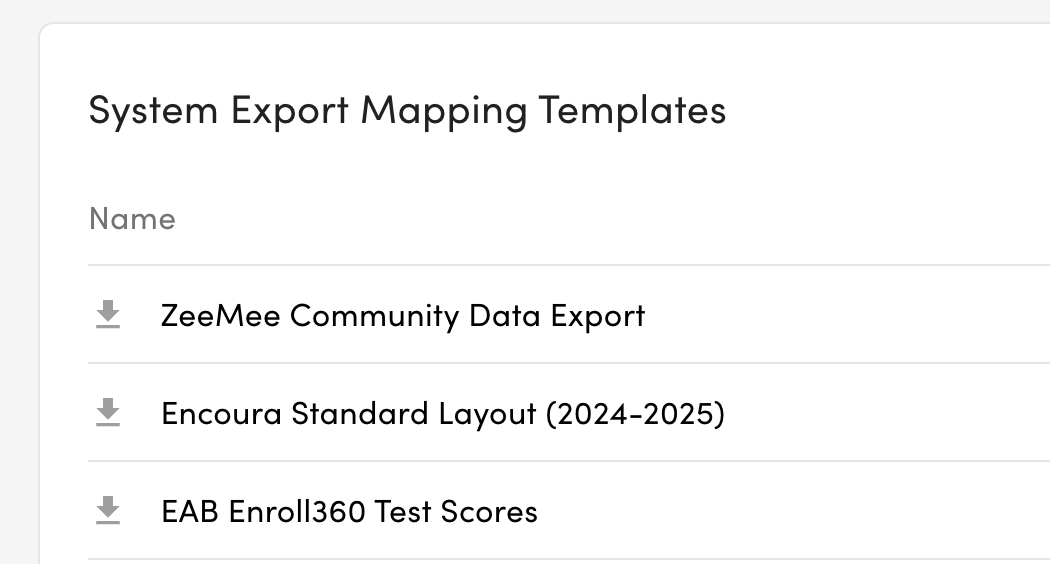
This is the “system” template that all Element451 partners can use.
Step 2: Open the template and select “Save as template” from the top right.
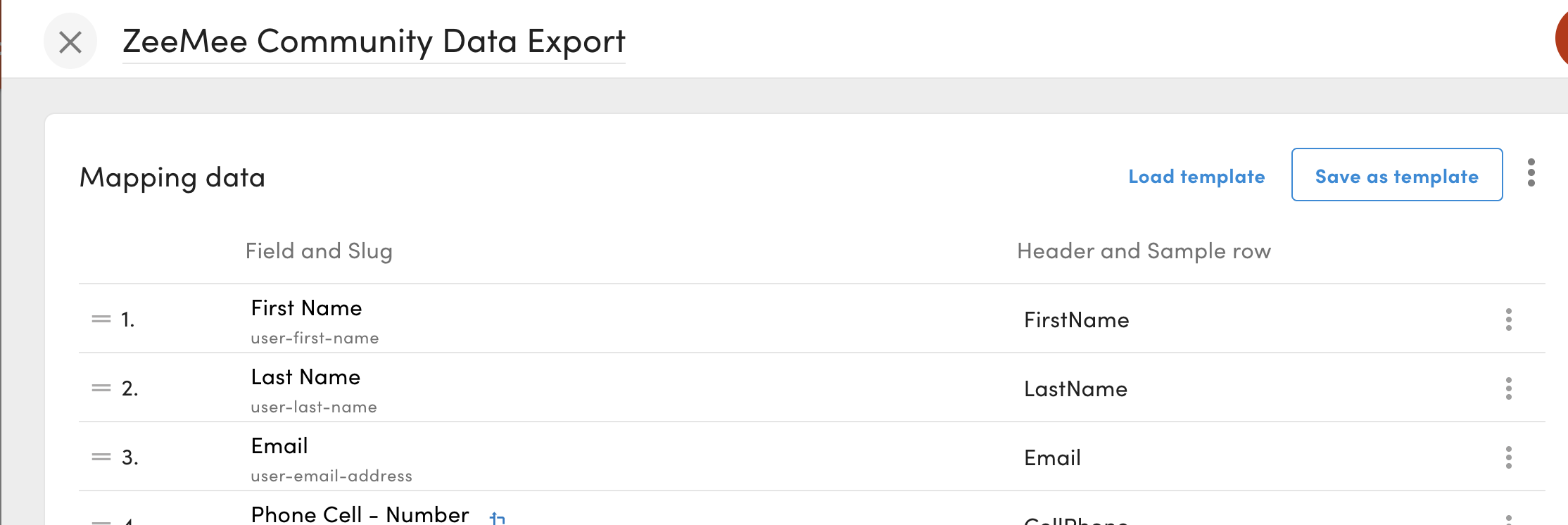
This will create a local copy. Give it a name, like “[COPY] ZeeMee Community Data Export” or something that better aligns with your naming convention.
Step 3: In the copy, locate fields with a scope error
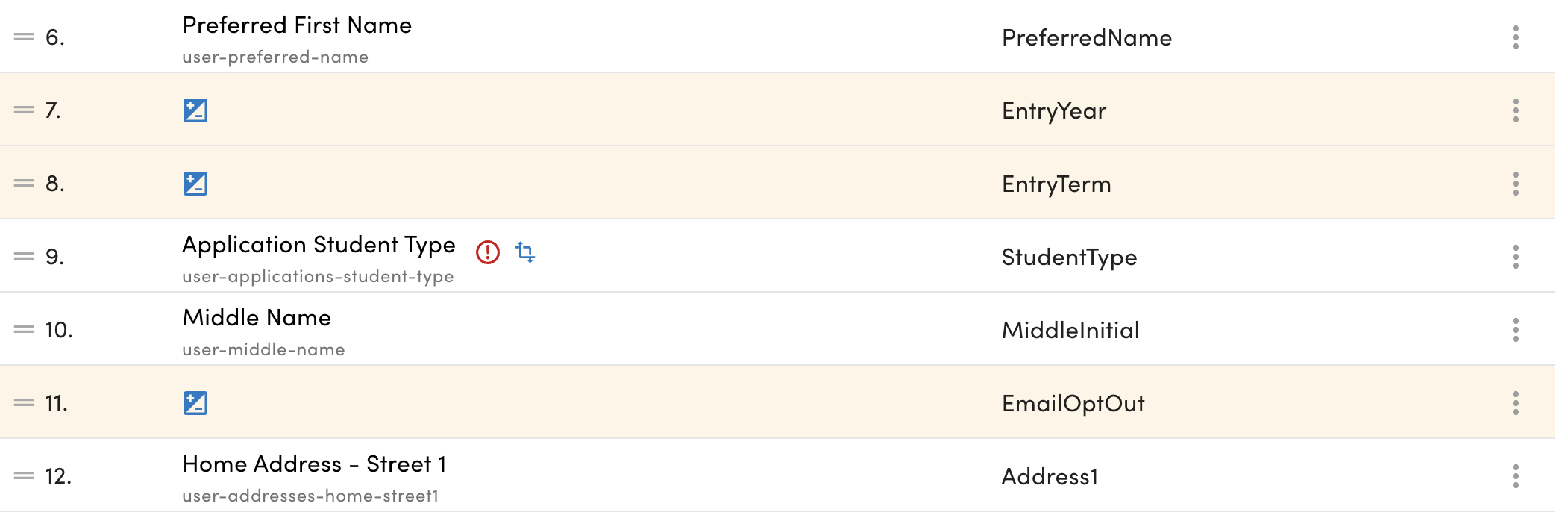
The “Scope” error is denoted by the red exclamation point icon. This means the field needs additional configuration. For the Community Data Export, each field with a slug like “user-applications-...” will have a scoping error.
Step 4: For each field with a scope error, set the scope in the column settings.
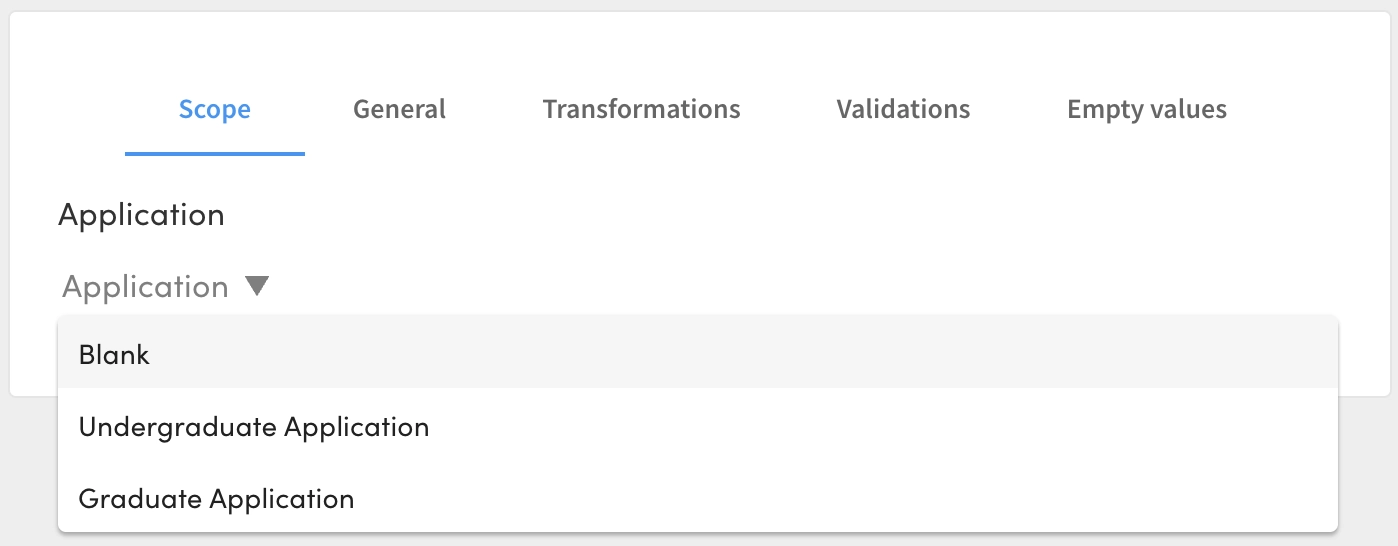
In this example, the scope prompts us to select an application type. In general, you should select the same application type for each field with a slug like “user-applications-...”
Step 5: Provide the GUID of your new template to the ZeeMee team.

The GUID is found at the last part of the URL. In this example, the GUID is “instance.template.19830”.