How to Sync Records (Workday)
Element → Workday#
Records can be synced from Element451 to Workday either manually or automatically.
During UAT, we strongly recommend using manual syncs only. This helps prevent accidental syncing of any production data you might have loaded during onboarding.
Sync Timing
- A typical sync takes 12–15 minutes
Manually Syncing a Record#
- In Element451, open the contact profile you want to sync
- Add the label:
- Element451 to Workday - Trigger SyncThis will start the integration process.
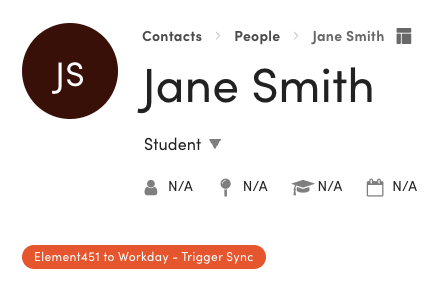
Top of an Element451 contact profile (breadcrumb Contacts > People) for a test contact, 'Jane Smith' (initials JS), marked as a Student. An orange label reading "Element451 to Workday - Trigger Sync" appears under the contact's name, showing the label that starts the sync.
- Element451 to Workday - Trigger SyncThis will start the integration process.
- Wait 10-15 minutes, then check Workday to see if the data loaded.
Setting up Automatic Syncs#
- In Element451, navigate to:
- Data + Automations → Automations → Rules
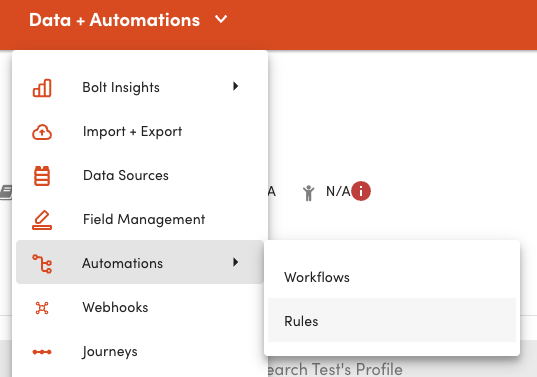
The Element451 top navigation Data + Automations menu is open, listing Bolt Insights, Import + Export, Data Sources, Field Management, Automations, Webhooks and Journeys. Automations is hovered, opening a submenu with Workflows and Rules; Rules is highlighted.
- Data + Automations → Automations → Rules
- Open the rule: Element451 → Workday Sync
- Under Triggers, add conditions to automatically start the sync. Common triggers include:
- Application Submitted
- Decision Released
- Changes are saved automatically. You can exit once updates are complete.
Sync Behavior#
Once triggers are configured:
- The integration will run automatically when conditions are met
Was this page helpful?