How to Sync Records (CFNC)
CFNC records sync to Element on a predetermined schedule. As of this time, there is no way for a partner to manually trigger a sync to happen without talking to an Element451 staff member. During UAT, a partner will work with the integrations specialist to test the sync by directly supplying records to sync. Once the integration is live, it happens on a schedule.
UAT/Manual Syncing#
During UAT, an Element staff member will request a list of records you would like to have sync’d from CFNC into Element. They will ask for a list of records to sync in the following format:
- {UserApplication ID} | {Student’s First and Last Name}
(The UserApplication ID is usually formatted like: UserApplication/#########-A).
The Element staff member will sync in application data as well as the PDF of the application for you to review from CFNC.
If there is ever a need for a manual sync to happen for a given record after UAT, a partner can work with Live Support and request a sync, providing the same information of “UserApplication ID | Student Name”
Scheduled Syncs#
Once a partner is live, all syncs happen automatically on a schedule. By default, CFNC applications are sync’d every hour with the PDFs of the application syncing about 30 minutes after the hour. However, if a partner needs them to sync on a quicker schedule, it can be requested.
Transcripts always sync into Element every 30 minutes after every 3 hours.
Reviewing the Integration Log#
Just like for SIS sync’d data, the Integration Log also will show CFNC application data sync information. It shows:
- Which records successfully synced
- Which records encountered errors
- Details needed to troubleshoot issues
We recommend reviewing the Integration Log at least daily to identify and resolve issues early.
Accessing the Integration Log#
- In Element451, navigate to: Profile Picture (top right) → Settings → Integrations
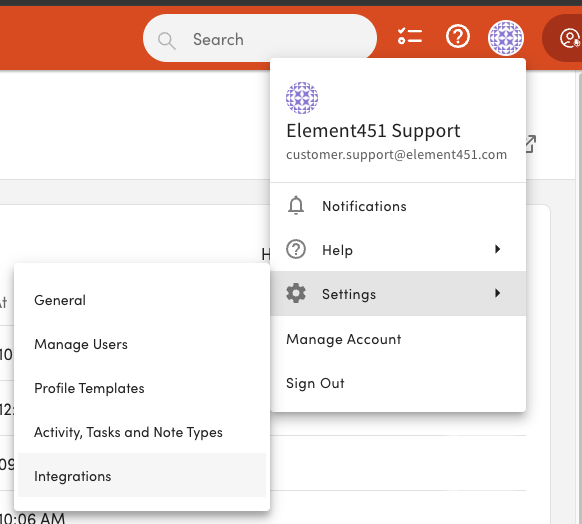
The profile picture menu at the top right of Element451 is open, showing Notifications, Help, Settings, Manage Account and Sign Out. Settings is hovered, opening a submenu with General, Manage Users, Profile Templates, Activity, Tasks and Note Types, and Integrations; Integrations is highlighted. - Select Integration Log from the left-hand menu
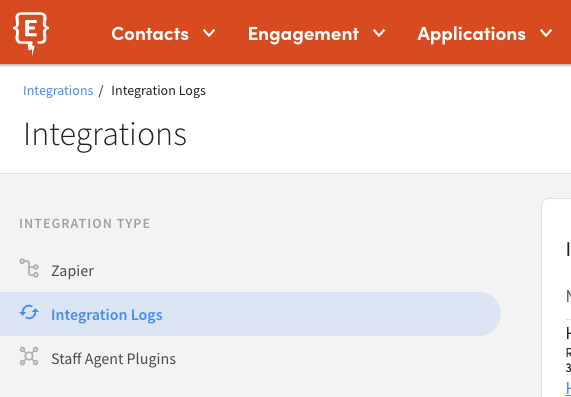
The Element451 Integrations settings page (breadcrumb Integrations / Integration Logs). The left-hand Integration Type menu lists Zapier, Integration Logs and Staff Agent Plugins, with Integration Logs selected. - The most recent sync records will appear at the top
How to Read the Integration Log#
Columns:

Each row represents a sync attempt. The columns include:
- Name
- The name of the student or record
- Type
- The direction and type of sync
- Status
- In Progress → Sync is currently running
- Success → Sync completed with no errors
- Error → One or more errors occurred
- Processed At
- Date and time the sync was processed
- Error Summary
- A brief description of the first error encountered
- Error Details
- Available via the ⋮ (ellipsis) menu
- Select View to see:
- Full error message
- Payload and API details (if applicable)
Important
An Error status does not always mean the entire sync failed.
- Some parts of the record may have synced successfully
- Errors may be limited to specific components (e.g., application, previous school)
Review the Error Details to understand the full impact.
Integration Log Controls#

- Search (🔍)
- Search records by student name
- Filter
- Filter by:
- Status (Success / Error)
- Sync type/direction
- Date range (Processed At)
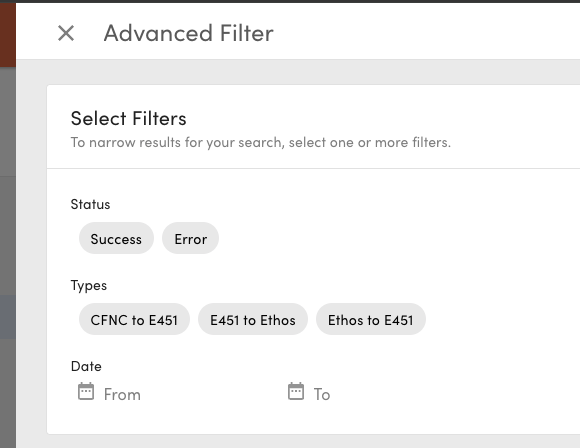
The Advanced Filter panel of the Element451 Integration Logs, headed 'Select Filters'. It offers Status chips (Success, Error), Types chips (CFNC to E451, E451 to Ethos, Ethos to E451), and a Date range with From and To date pickers. Ethos types appear because this instance also runs an Ethos integration.
- Filter by:
- Paging
- Navigate through multiple pages of results
Viewing Details of an Error#
When reviewing an error in the Integration Log, it is important to look at the full set of error details, not just the summary.
- A single sync can contain multiple errors
- Scroll through the error details to review all issues associated with that sync
- Some errors may not be critical, while others may block key parts of the process
Troubleshooting Steps#
- Review the full error details in the Integration Log
- If you are unable to resolve the issue, contact Element451’s Live Support: How to Work with Live Support (Managed Integrations)
Note: If the error is “Matched on multiple records during import” you will continue to see that record/error show up in the log every time data is sync’d on the schedule until it is resolved. It means there is more than one record in Element that the CFNC record matches to. If you view the details of the error message in the log, it will provide you both Element IDs it matches to. You can resolve by merging the records together and then next time the CFNC sync happens, it will successfully merge into the remaining record.